

The new Room Availability page shows one day of bookings for every location in a single grid, so you can see at a glance which rooms are taken and which are free.
One Column For Every Room
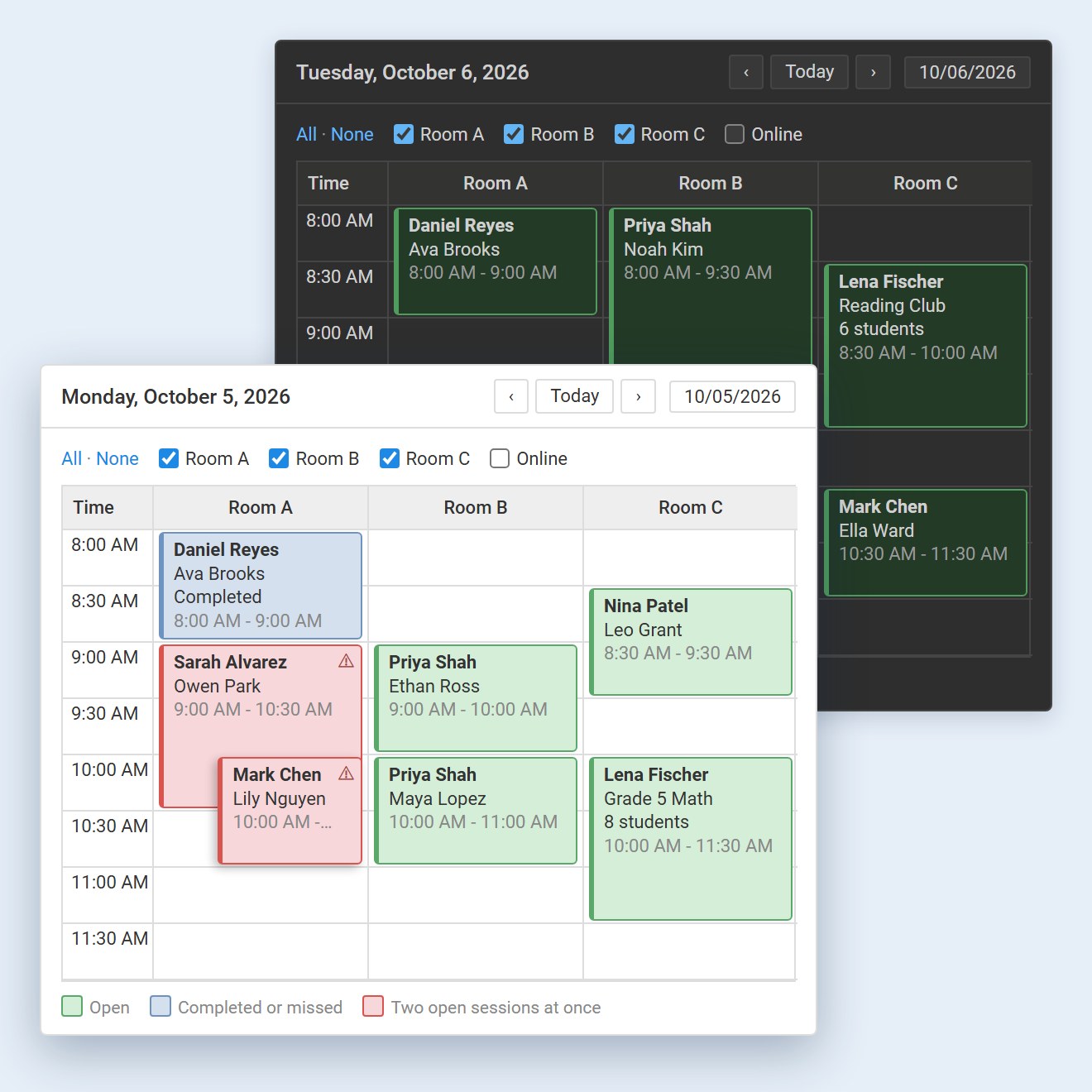
Each active location gets its own column and each row is a half hour, so an empty space means that room is free at that time. If your center has several rooms, set up each room as a location and they all appear side by side. Use the arrows, Today or the date box to move to any day.
Show Only The Rooms You Need
Untick a location at the top to hide its column, for example to leave out online meetings. All and None switch every location on or off at once, and the page remembers your choice on that browser.
Double Bookings Stand Out
Upcoming bookings are green and completed or missed ones are blue. When two upcoming bookings share a room at the same time, both turn red with a small warning sign, and the later one sits across the earlier one so both names stay in view. Canceled bookings are left off the grid.
Everyone In A Booking, One Click Away
Each booking shows who is leading it and who is attending, and a group booking shows its title and how many people are booked. Click any booking to see the service, the times and the full list of everyone in it.
Where To Find It
Open the menu that holds your Calendar and click Room Availability, or click the small building button at the top of the calendar. The page is view only, so it is safe to leave open at the front desk. It is available on the administrator and staff sides of your account.
If you have any questions, please contact support at mail@bizstim.com.
Sincerely,
The Bizstim Team
